
Use the Young Minds Anti-Tampering app on your Windows computer to remove Anti-Tampering from your child’s iPhone or iPad.
Important: Removing Anti-Tampering will also delete the Young Minds Kids app from your child’s device. Young Minds protection and monitoring will stop until you reinstall and pair the Young Minds Kids app again.
Removal usually takes 7-15 minutes. You’ll need:
- Your child’s iPhone or iPad
- A Windows computer
- A USB cable to connect the device to your computer
Before you begin
We recommend completing the removal at home. If you’re away from a familiar location, Apple may apply a Security Delay, which can require you to wait for up to one hour before continuing.
The screens may look slightly different depending on the iOS or iPadOS version installed, but the steps are the same.
Step 1 - Download and run the Young Minds Anti-Tampering app
Download the Young Minds Anti-Tampering app for Windows.
The download isa ZIP file. Extract it, then open Young-Minds-Anti-Tempering-App.exe. The Windows app does not need to be installed.
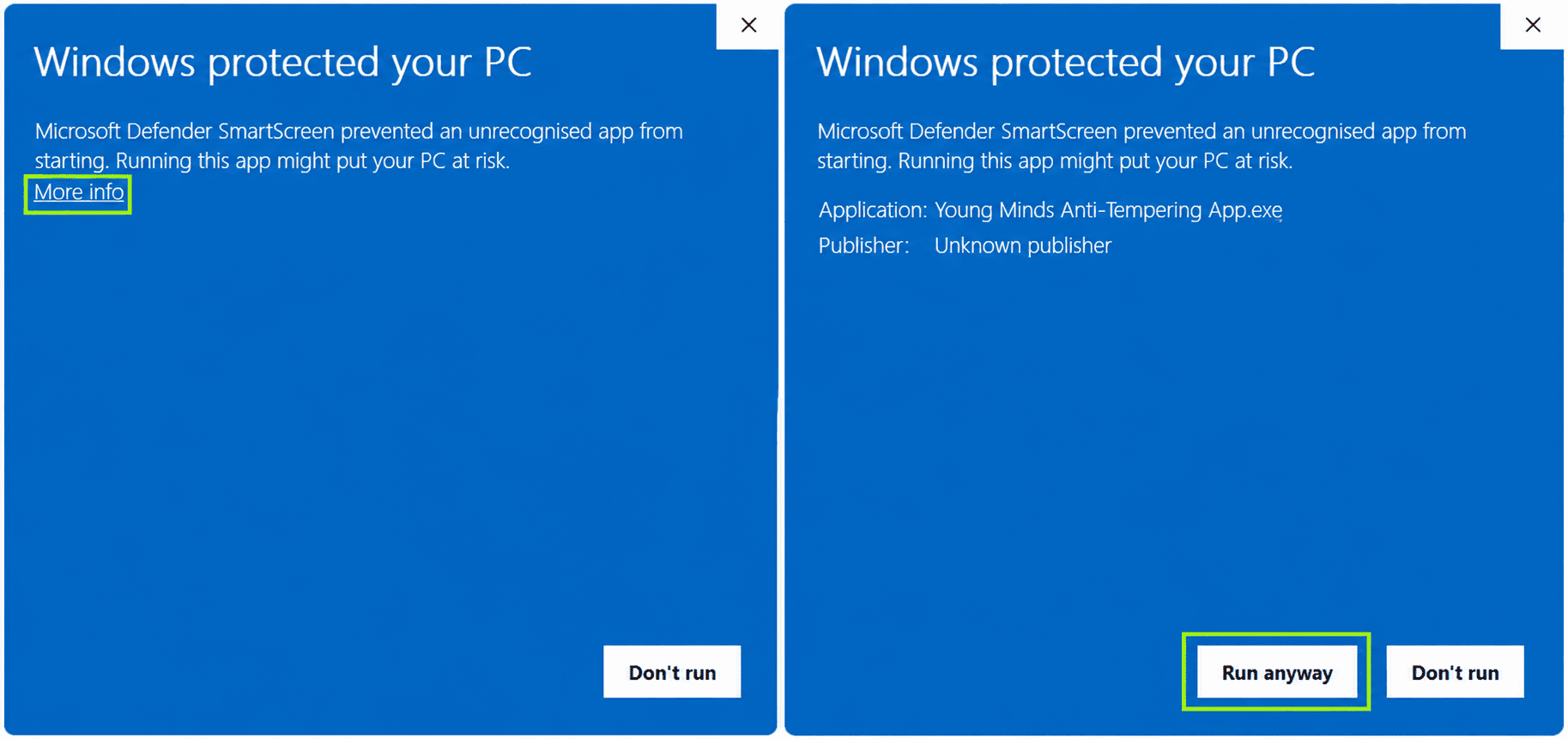
Some users may see a Windows Security message saying “Windows protected your PC.” If this appears, select More info, then Run anyway as shown below:
Step 2 - Install and open iTunes
Skip this step if you already have iTunes installed.
iTunes is required to connect your child’s iPhone or iPad to yourWindows computer.
- Download and install iTunes for Windows.
- Open iTunes at least once before continuing.
Step 3 - Log in
Log in to the Young Minds Anti-Tampering app using your Young Minds Parent account. Use the same email address and password you use for your Young Minds account.
The app will guide you through the rest of the process.
Note: Each step includes instructions showing you exactly what to do.
Step 4 - Connect your child’s device
Connect your child’s iPhone or iPad to your Windows computer using a USB cable. Unlock the device and tap Trust if prompted.
The Anti-Tampering app will automatically recognise the device and show the child name, device name, software version and Anti-Tampering status.
Check that this is the correct device. If Anti-Tampering is enabled, select Disable Anti-Tampering.
Step 5 - Confirm removal
The app will explain what happens when Anti-Tampering is removed. Anti-Tampering protection will be disabled and the Young Minds Kids app will be deleted from your child’s device.
If you want to continue, select Disable Anti-Tampering.
Step 6 - Turn off Encrypt local backup
If Encrypt local backup is enabled:
- Open iTunes (or Apple Devices) and select your child’s iPhone or iPad.
- Under Backups, untick Encrypt local backup. Enter the backup password if prompted.
Return to the Young Minds Anti-Tampering app, confirm that Encrypt local backup is turned off, then select Continue.
Step 7 - Turn off Find My
Find My must be temporarily turned off before Anti-Tampering can be removed.
On iPhone
If Stolen Device Protection is enabled, turn it off first:
Settings→ Face ID & Passcode → Stolen Device Protection → Off
Then go to:
Settings → Apple Account name at the top → Find My →Find My iPhone → Off
Enter the Apple Account password if requested.
On iPad
iPad does not use Stolen Device Protection. Go directly to:
Settings → Apple Account name at the top → Find My →Find My iPad → Off
Enter the AppleAccount password if requested.
Once Find My is off, return to the Anti-Tampering app and continue.
Only if Apple requires a Security Delay
This can happen on an iPhone when Stolen Device Protection is enabled and Apple does not recognise the current location as familiar.
- Tap Start Security Delay on the iPhone.
- Wait one hour. You can continue using the iPhone, but do not restart it or turn it off.
- After the delay, confirm with Face ID or Touch ID and turn Stolen Device Protection off.
- Return to the Anti-Tampering app and continue with turning off Find My.
Tip: Completing this step at home or another familiar location can usually avoid the one-hour delay.
Step 8 - Remove Anti-Tampering
Once all required settings are off, you’ll see Ready to Disable Anti-Tampering and a checklist confirming that everything is ready.
Select Disable Anti-Tampering. The process usually takes 7-15 minutes.
Important: Keep your child’s device connected to the Windows computer. Do not unplug the USB cable until the process is complete.
Your child’s device will restart during removal.
Step 9 - Unlock your child’s device
Wait for the device to fully restart, then unlock it. Keep the device connected to your computer while the Anti-Tampering app finishes the removal.
You do not need to change any settings on the device. Simply unlock it and wait for the process to complete.
Step 10 - Complete the removal
Once removal is complete, you’ll see Anti-Tampering Disabled.
Select Done in the Young Minds Anti-Tampering app.
Before you finish
Don’t forget to turn the security settings you temporarily disabled back on.
For iPhone:
Find My: Settings→ Apple Account name at the top → Find My → Find My iPhone → On
Stolen Device Protection: Settings → Face ID & Passcode → Stolen Device Protection → On
For iPad:
Find My: Settings→ Apple Account name at the top → Find My → Find My iPad → On
What happens after Anti-Tampering is removed
Anti-Tampering will no longer protect the device, and the Young Minds Kids app will have been deleted.
If you want to continue using Young Minds on this device, reinstall the Young Minds Kids app and follow the normal setup instructions. You can continue using the Young Minds Kids app without Anti-Tampering, but your child will no longer have the additional protection that prevents the Kids app or its protection from being removed. Additionally, some iOS settings will not be available.

