Hidden Vault & Calculator Apps: How Parents Can Check Kids’ Phones
Worried about secret calculator or vault apps? Check iPhone and Android apps, understand parental-control limits, and talk to your child without accusations.
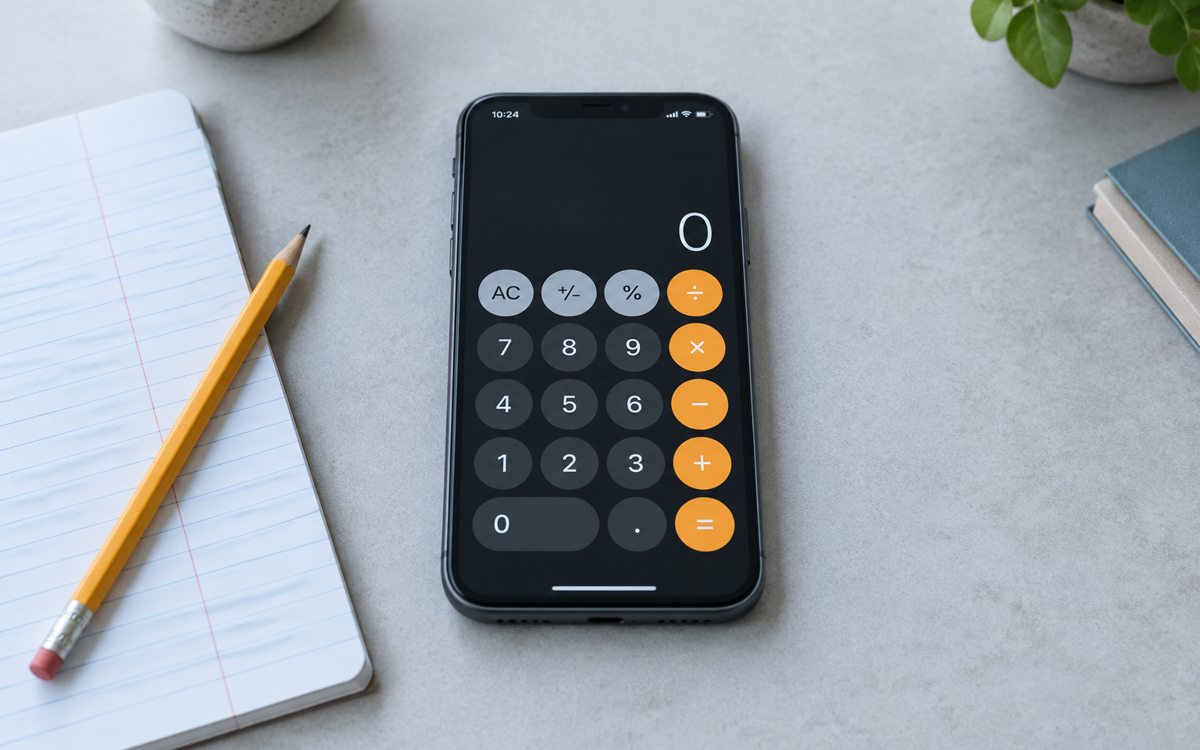
A calculator icon does not always mean a calculator. Some third-party “vault” apps look like everyday utilities but also store photos, videos or files behind a password. Yet a second calculator, a missing icon or a large storage footprint is not proof that your child is hiding something harmful.
This guide helps parents of children aged 5–12 distinguish an ordinary hidden app from disguised storage, check an iPhone or Android together, and respond without turning a safety concern into a secret investigation.
Look at the installed-app list and the app’s official store description, not just its icon. Check whether the device uses your child’s correctly aged, supervised account. Ask your child to explain an unfamiliar app before deleting it. No checklist can guarantee that every hidden app or file will be found.
What is a calculator vault app?
A calculator vault is a third-party app with two functions: an ordinary-looking calculator and password-protected storage. Other vaults use a photo, folder or notes-style appearance. Features vary: some store only files; others advertise a browser or additional privacy tools. Do not assume every vault supports messaging, or that every calculator with a different icon is a vault.
There is no dependable, permanent blacklist. Store names, icons and developers change, and similarly named apps can be different products. Ask: “What does this particular app do, who made it, and why is it on this device?” rather than “Does the name sound suspicious?”
We have not installed or tested individual vault products for this article. This is a device-checking and conversation guide, not a security assessment of named apps. The cover is an illustrative calculator image, not a screenshot of a verified vault product.
Hidden apps, hidden photos and vaults are different things
| What you notice | What it might mean | What to check together |
|---|---|---|
| App missing from the Home Screen | It may have been removed from the Home Screen, not deleted. | Installed apps and App Library or the app drawer. |
| Password-protected photo album | Built-in photo privacy, rather than a separate vault app. | Which feature is being used and your agreement about it. |
| Utility advertising “vault” features | A third-party app with private storage. | Developer, description, permissions and reason for installing it. |
| Separate Android private space | An operating-system feature on supported devices. | Android version and whether the main account is supervised. |
Apple confirms that removing an app from the Home Screen sends it to App Library rather than deleting it. Its lock-and-hide feature is a separate mechanism. Google’s Private Space is separate again. See the Apple app-removal guide and Google’s Private Space requirements.
Four clues worth checking — not treating as evidence
- Two calculators: one might be a school calculator, widget or accessibility tool. Read the exact app listing.
- A utility using considerable storage: it could contain files, but also downloaded resources or cached data. Size cannot tell you what the files are.
- An unfamiliar installed app: an icon can disappear from the Home Screen without the app being deleted.
- A mismatch between description and permissions: a calculator requesting photo access deserves a question. It may have a legitimate scan or import feature.
The most useful clue is context. An unfamiliar app plus a child describing pressure, threats or unwanted contact is a different situation from an unfamiliar app alone. Avoid reading fear or reluctance as a confession: children may worry about losing their phone even when they need help.
How to check for hidden apps on an iPhone or iPad
Do this with your child when possible. Tell them what you are checking and why. Labels differ by software version; use Apple’s current instructions if your screen looks different.
- Check the account first. Is this your child’s own Apple Account, with their correct birth date, in Family Sharing? A shared adult account does not have the same child-specific safeguards.
- Look beyond the Home Screen. Open App Library and browse the installed apps together. An app removed from the Home Screen can still be used there.
- Review storage. Go to Settings → General → iPhone Storage (or iPad Storage). Tap unfamiliar utilities to see their app size and documents/data. Apple explains the list in its storage guide. Large storage is a prompt for a conversation, not a diagnosis.
- Match the exact developer. Find the app in the App Store. Read its description, age rating, privacy information and purchases. Store disclosures are not an independent safety audit.
- Review Screen Time and downloads. Check the apps shown in usage reports and the family’s download settings. Ask to Buy is useful, but Apple says a child redownloading their own purchase does not generate another approval request. Download history is not a complete inventory of what is installed now.
Apple says children under 13 in a Family Sharing group cannot use its built-in app lock/hide feature; the relevant ages vary by country or region. This does not mean every app is visible on the Home Screen, nor does it rule out third-party vault apps. Removing an icon and hiding an app are different actions. See Apple’s lock-and-hide guidance.
For an older teenager using Apple’s hide feature, Apple says a parent in the family group can still see that the app was downloaded, see its usage and restrict it through Screen Time. That is not permission to read its private contents, or a promise that those contents are visible.
How to check for hidden apps on Android
Android varies by manufacturer. A Pixel, Samsung Galaxy and another brand may use different menus. A launcher’s hide-icon option, a manufacturer’s secure folder and Google’s Private Space are not interchangeable.
- Check supervision. Confirm that the main Google account belongs to your child and is supervised where appropriate. An adult account on a child’s phone changes which protections apply.
- Open the installed-app list. Usually this is Settings → Apps → See all apps; wording varies. Review unfamiliar utilities together rather than relying on the launcher.
- Read app details. Check storage and permissions. Find the exact developer’s listing in Google Play if available. An unfamiliar or unlisted app needs explanation, not an instant accusation.
- Review Family Link. Google says it can manage app permissions and block or allow apps on supervised devices. Purchase approvals only cover Google Play’s billing system, so they are not a guarantee about every download or purchase.
- Check manufacturer guidance. For secure folders, multiple profiles or hidden icons, use the instructions for that device. An ordinary app list may not represent every separate space.
Private Space has an important limit: Google lists Android 15 or later and supporting hardware among its requirements, and says it cannot be used when a supervised account is signed into the main space. Do not assume it is available on every child’s Android phone. See Private Space and Family Link’s scope and limitations.
Can a vault app bypass parental controls?
Hiding content is not the same as bypassing an app limit. A vault may keep its files private while the installed app remains visible to device controls. Controls can restrict access without showing you what is stored inside. Conversely, browser access, another account or another device may create gaps that removing one app will not solve.
Do not put an unfamiliar utility on an “always allowed” list just because its icon looks harmless. Decide based on its actual function. For the wider setup, see ways children get around parental controls. No app can honestly promise to detect every disguised tool or reveal every private file.
What to say if you find a vault app
“I noticed an app that stores things privately. I’m not assuming you’ve done anything wrong. Can you show me what it is for? If someone has sent you something upsetting or asked you to keep a secret, helping you comes first.”
Separate three questions: What does the tool do? What agreement has been broken, if any? Is someone putting your child at risk? Combining them into “You lied, so I’m taking everything away” can make a child less willing to explain a worrying contact.
Do not promise total confidentiality or no consequences under any circumstances. Make a narrower promise you can keep: “You will not be blamed for asking for help. I may need another adult to help keep you safe, and I will explain that to you.”
A three-part agreement: privacy, approval and help
- Privacy: agree what belongs to your child, such as a diary or creative work, and what triggers a joint safety review. Privacy is not something they must earn by surrendering every conversation.
- Approval: new apps and private storage tools are discussed first. Explain what you will review: purpose, developer, permissions and age suitability. Recheck previously approved apps when their function changes.
- Help: no one should demand secret contact, images, money or secrecy from trusted adults. If that happens, your child comes to you even if they broke an app rule.
For younger children, hands-on setup and shared use may be appropriate. As they become more independent, explain checks beforehand and involve them in decisions. For a wider trust framework, read should parents check children’s messages? and a calm plan when children sneak screens.
When this needs more than a settings check
Escalate when there is a disclosure or credible concern about threats, coercion, sexual contact, blackmail or an adult asking for secret communication. A vault icon alone does not establish any of these.
If you suspect child sexual abuse material, do not copy, forward or upload it to investigate. Do not ask your child to send it to you. Avoid deleting potential evidence before seeking advice. You can report suspected online child sexual abuse or grooming to CEOP; contact police for other crimes. If a child is in immediate danger, call 999. Children can contact Childline on 0800 1111.
Where Young Minds App fits — and where it does not
Young Minds App is designed for families with children aged 5–12. It can support agreed screen-time routines, but this guide does not claim it scans inside encrypted vaults, identifies every disguised app or replaces Apple and Google account safeguards. Use the device checks above alongside clear conversations and your family’s chosen controls.
Explore how Young Minds App works if you want help making the wider routine predictable. The goal is not to become a better detective: it is to make unsafe secrets harder to sustain and asking for help easier.
Frequently asked questions
Does a second calculator mean my child has a secret vault?
No. It may be a legitimate maths app. Check its exact developer, description and function together before drawing conclusions.
Can I find every hidden app through storage settings?
No. Storage is useful for reviewing installed apps, but separate profiles, private spaces, browser services and other devices can complicate the picture. It does not reveal what private files contain.
Should I delete a vault app immediately?
Not automatically. Understand its purpose first. If there is a safeguarding concern, seek advice before deleting potential evidence. Otherwise, agree what changes and why; deleting an app can also delete legitimate work.
Does Ask to Buy prevent every repeat download?
No. Apple says redownloading a child’s own purchase does not require a fresh request. Review installed apps and settings rather than treating approval notifications as a complete record.
Sources and editorial notes
Official device guidance checked on 27 November 2026. Menu labels, regional age rules and features can change. This article does not claim hands-on testing or measured prevalence of children using vault apps.