The Homework Device Dilemma: How to Stop Distractions When Homework Is on a Tablet
School homework is on apps, but tablets invite YouTube and games. A simple routine for parents and how to allow only school learning apps during homework.
A founder's note
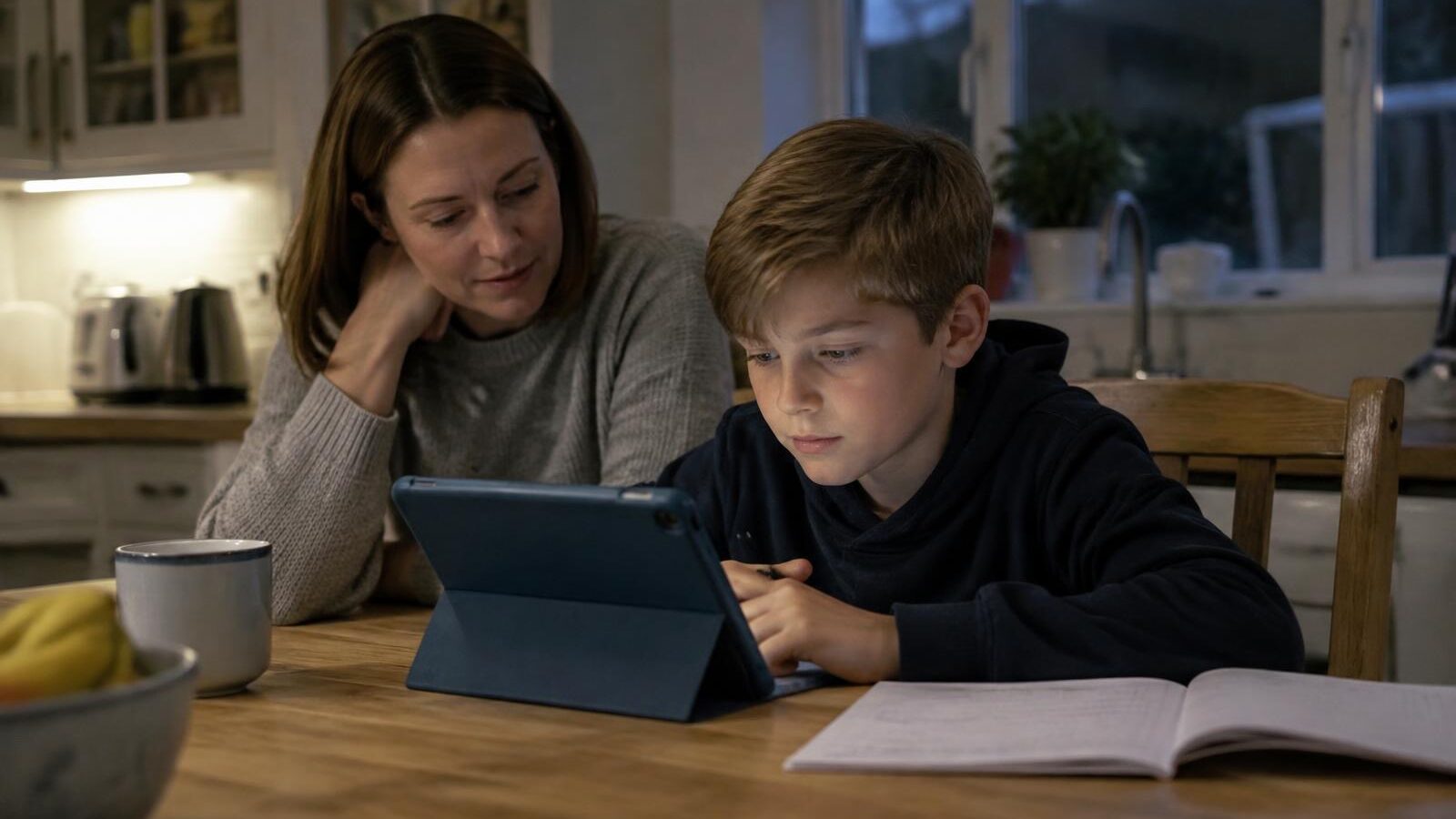
As a mum, I hear the same story again and again: the school sets homework on an app, so the tablet comes out at the kitchen table, and ten minutes later it is YouTube, Roblox or a group chat. Parents feel stuck between supporting the school and fighting the device. This guide is about ending that tug of war.
Quick answer
If your child's homework lives on a tablet or laptop, the calmest fix is to allow only the school's learning apps and websites during homework time, keep the device in a shared space and set a clear finish. When distractions simply are not available, you no longer need to hover.
The homework device dilemma
Many schools now set homework through online platforms for maths, reading, spelling and times tables, or through a class portal. These tools can be genuinely helpful. But the device that opens them also holds every game, video and chat your child loves. Schools set the task; parents are left to police the screen.
- "It's for homework" becomes the reason the tablet is out, and the hardest moment to say no.
- One tricky question makes switching apps feel like relief.
- Constant checking turns homework into arguments for the whole family.
Why "just ten minutes" turns into an hour
Games and video apps are designed to keep attention. Autoplay, notifications and endless feeds are hard for adults to resist, let alone a 9-year-old. It is not a discipline failure; it is the device doing what it was built to do. That is why setup works better than reminders.
A simple homework routine that works
| Step | What to do | Why it helps |
|---|---|---|
| 1. Ask the school for the list | Write down the exact apps and websites homework needs. | You know what to allow, nothing more. |
| 2. Fix a homework slot | Same time each day, e.g. after a snack. | Routine removes daily negotiation. |
| 3. Allow only learning tools | Only the listed apps and sites work during the slot. | Distractions are simply unavailable. |
| 4. Use a shared space | Kitchen or living room, not the bedroom. | Help is nearby without hovering. |
| 5. Clear finish, then free time | Homework ends, normal limits return. | Children know what comes next. |
How Study Mode helps
In Young Minds App, Study Mode means only the study apps and websites you choose are allowed. It does not force your child to study; it removes the distractions while they do. You can curate it to match exactly what your child's school uses.
- Add the school's learning apps and websites to Study Mode.
- Schedule it for your usual homework time.
- Use Always Allowed for essentials, such as calling you.
- When homework ends, normal Daily Time limits apply again.
Not sure which features suit your family? Try our feature recommendations. Preparing for exams? Read our 11+ revision focus plan.
For schools
Schools can make this easier by sharing one simple list of the learning apps and sites pupils need at home. Parents can then set up a focused homework time in minutes. Learn more on our page for schools.
FAQ
Should I take the tablet away for homework?
Not if homework is set online. A focused setup keeps the learning tools and removes everything else.
What if my child needs to search for something?
Add the specific websites the school recommends. Keep broader browsing for times you are nearby.
Does Study Mode work on tablets and phones?
Study Mode works on the child's device with the Young Minds Kids app installed. See our Help Centre for device setup.
Make homework time calmer
Young Minds App helps parents of children aged 5–12 build calmer screen routines. Try it free for 7 days on the App Store or Google Play.